Hello,
I think all of us tried this at some point looking at out of the box features and surprise surprise you cannot do it 🙂
So here is my approach and it is a very simple one which can be extended in a much more complex piece of code but for my requirements it will do.
I have created a cs file with the code: AutomatedPublish (not sure if its a English word)
public class AutomatedPublish
{
public void FuturePublish(Item[] items, Sitecore.Tasks.CommandItem command, Sitecore.Tasks.ScheduleItem schedule)
{
foreach (var item in items)
{
// The publishOptions determine the source and target database,
// the publish mode and language, and the publish date
Sitecore.Publishing.PublishOptions publishOptions = new Sitecore.Publishing.PublishOptions(
item.Database,
Database.GetDatabase("web"),
Sitecore.Publishing.PublishMode.SingleItem,
item.Languag,System.DateTime.Now);

// Create a publisher with the publishoptions
Sitecore.Publishing.Publisher publisher = new Sitecore.Publishing.Publisher(publishOptions);

// Choose where to publish from
publisher.Options.RootItem = item;

// Publish children as well?
publisher.Options.Deep = false;

// Do the publish!
publisher.Publish();
}
}
}
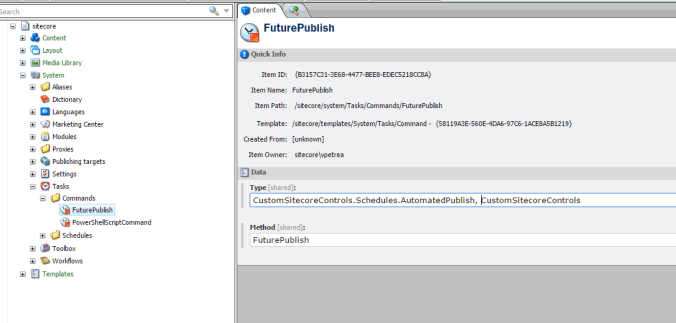
In sitecore you will have to create the command in the System -> Tasks -> Commands.
- Under TYPE field please enter the namespace and class name separated by comma with the namespace.
- Under METHOD please put the name of the method for example FuturePublish from the code above.
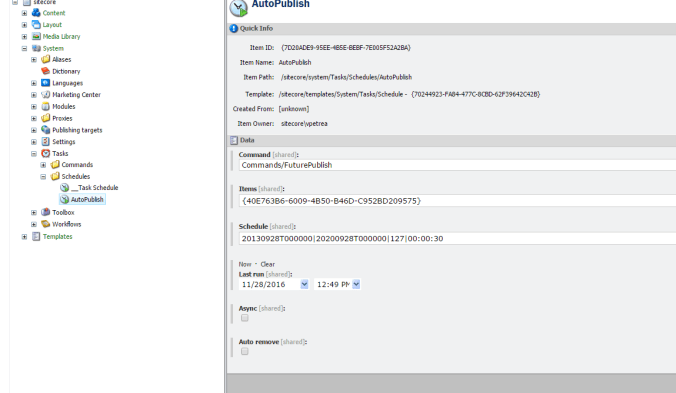
In the folder System -> Tasks -> Schedules you will have to create the schedule that will use the command created above.
- Under COMMAND field add the path to the command created above.
- Under ITEMS field add the item or items separated by pipeline(|) you want to AutoPublish
- Under SCHEDULE field you will have to configure when the scheduler
- Start date 20130928T000000 yyyyMMdd format.
- End date 20200928T000000 yyyyMMdd format.
- The days of the week that the task should be run. Each day is assigned a value: 1 = Sunday, 2 = Monday, 4 = Tuesday, 8 = Wednesday, 16 = Thursday, 32 = Friday, and 64 = Saturday. For example to run a task Monday through Friday you’d enter 62 (2 + 4 + 8 + 16 + 32). I have my task set up to run every day (1 + 2 + 4 + 8 + 16 + 32 + 64 = 127).
- The minimum interval the task is to be run in HH:mm:ss format. The example below is set to run once every 30 seconds.
Part I done. Now you have a scheduler that will Auto Publish your items based on your configuration.
Click here for Part II and the setup of versioning and publish restrictions.
Yours,
VP
 Life with Viorel Petrea